


FAQ
Q.Is a smartphone app required to use this product?
Q.I can't connect my instax mini Evo 2™ to my smartphone via Bluetooth®.
Refer to the procedure below.
- Select Bluetooth® settings from the Shooting Menu on your instax mini Evo 2™ device. Check if “Unpair” can be selected.
⇒ If "Unpair" can be selected, unpair the device.
⇒ If “Unpair” cannot be selected, no action is required. - Open the Bluetooth® settings screen on your smartphone. Check if a previously-connected instax mini Evo 2™ is displayed.
instax mini Evo 2™ cameras are displayed as INSTAX-H-A8XXXXXXXX. Delete any others that are displayed.
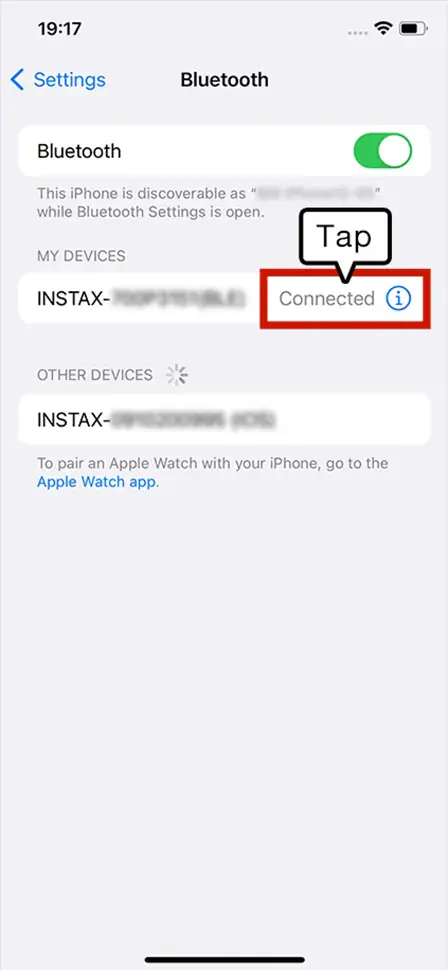
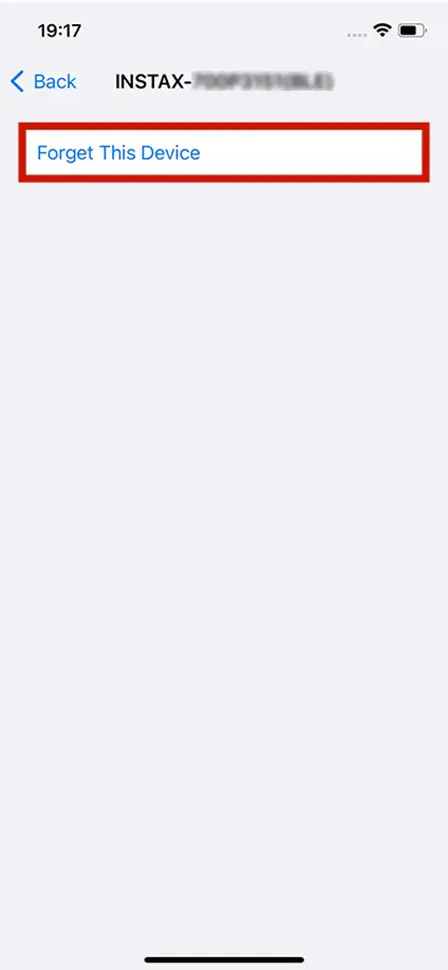
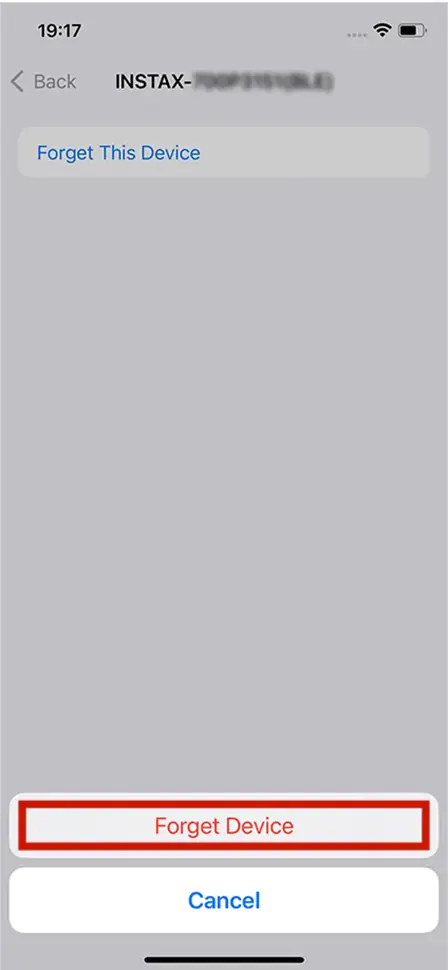
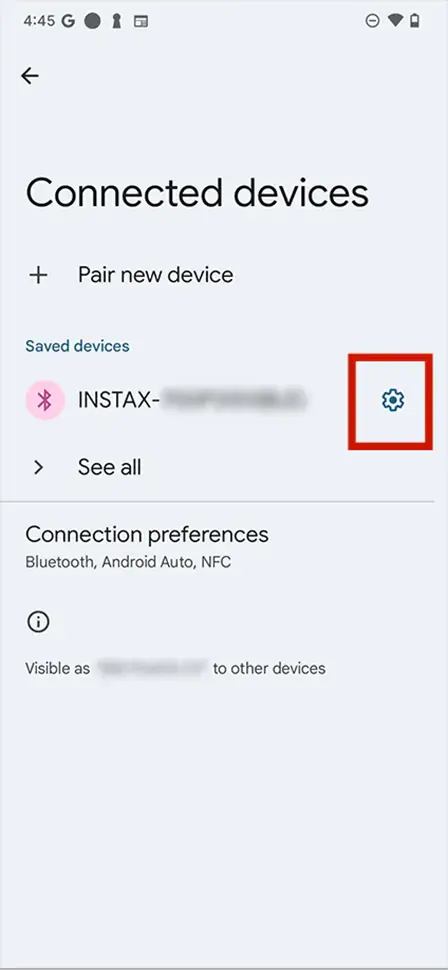
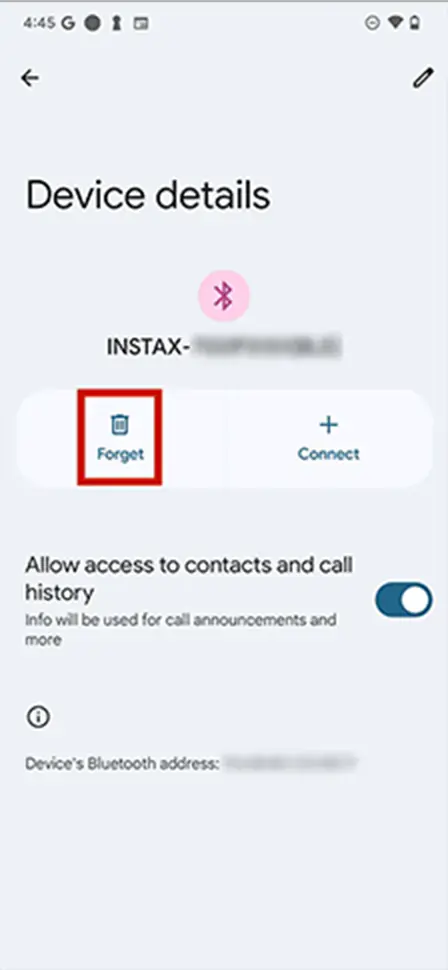
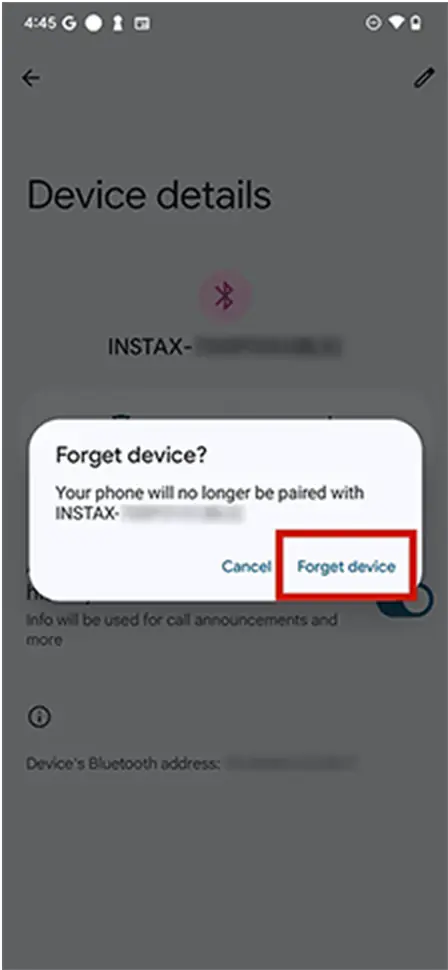
- Restart your smartphone.
- Turn on Bluetooth® through the smartphone’s settings. If Bluetooth® is already turned on, turn it off then on again.
- Open the instax mini Evo™ app on your smartphone, then press "Connect camera" on the app home screen.
- Open the instax mini Evo™ app on your smartphone, then press

- When camera that can be connected is displayed on the app’s Bluetooth® settings screen, press the connect button.
- The app prompts you to connect via Bluetooth®. Make sure the authentication code displayed on the screen matches the code displayed on the instax mini Evo 2™ screen, then press "Pair".
- Press OK on the instax mini Evo 2™ screen. The instax mini Evo 2™ can now be paired with the instax mini Evo™ app.
Q.I can’t connect my instax mini Evo 2™ to the instax mini Evo™ app.
Your smartphone OS will request the following permissions when the instax mini Evo™ app is opened for the first time after installing or updating the app.
Some or all of the app’s functions may be unavailable if these permissions are not granted. Check your current settings and adjust as required.
Tap the “Settings” button on the home screen.
【iOS 16-17】Scroll down to the “instax mini Evo™” icon and tap on the icon.
Check that the “Photos”, “Bluetooth®” and “Camera” permissions are set as shown below.
Tap the “Apps” button.
Scroll down to the “instax mini Evo™” icon and tap on the icon.
Check that the “Photos”, “Bluetooth®” and “Camera” permissions are set as shown below.
| iOS 18 or later | iOS16-17 | |
|---|---|---|
| “Photos” permissions |
Select “Full Access” |
Select “All photos” |
| “Bluetooth®” permissions |
Slide right | Slide right |
| “Camera” permissions |
Slide right | Slide right |
Tap the “Settings” button on the home screen.
Android 11 or earlier: Tap “Apps & notifications”.
Android 12: Tap “Apps”.
Tap “Display all apps”.
Scroll down and tap the instax mini Evo™ icon.
Tap “Permissions”.
Check that the “Camera”, “Nearby Devices”, “Location”, “Photos and Videos” and “Files and Media” permissions are set as shown below:
| Android 12 or later | Android 11 or earlier | |
|---|---|---|
| “Camera” permissions | Select “Allow only while using the app” | Select “Allow only while using the app” |
| “Nearby devices” permissions | Select “Allow” | ー |
| “Location” permissions | ー | Select “Allow only while using the app” |
| “Photos and Videos” permission | Select “Always Allow Everything” | ー |
| “Files and Media” permission | ー | Allow “Access to Media Only” |
If the region is set to Mainland China (excluding Hong Kong, Macau and Taiwan) in the app's usage area settings, only an instax mini Evo 2™ purchased in China can be connected. If the region selected is incorrect, reinstall the instax mini Evo™ app and select the correct region.
*If you have already installed the app, please make sure you are running version v3.0.0 or later.
Q.The “instax mini Evo 2™” camera and “instax mini Evo™” app cannot connect via Wi-Fi.
Please try reconnecting. If the issue persists, try the following:
- Check the camera's firmware version and update to the latest version if it is not current.
- Restart your smartphone.
- Press the reset button on the “instax mini Evo 2™” camera to restart it.
Q.Auto-transfer of movies/still images takes a long time.
Changing the connection between the “instax mini Evo 2™” camera and the “instax mini Evo™” app to Wi-Fi enables faster data transfer. Please try the following steps:
- While an image is being transferred, tap “Switch to High-Speed Mode.”
- Tap “Switch to Wi-Fi Connection”
Q.What are the performance specifications of the camera?
See here.
Q.Where can I find out about the latest firmware?
See here.
Q.How do I update the instax mini Evo 2™ firmware?
(Update using the instax mini Evo™ smartphone app)
- Open the instax mini Evo™ smartphone app.
- Select “SETTINGS” on the app.
- Select “CHECK FOR FIRMWARE UPDATES”.
- Follow the instructions on the screen.
Q.How do I update the instax mini Evo 2™ firmware?
(To update by downloading from the web)
- Make sure you have a microSD card ready (sold separately).
- Download the most recent firmware here, then save the “FPUPDATE.DAT” file for the most recent update onto your micro SD card.
- Insert the microSD card into a fully charged camera.
- Select “UPDATE” from the camera’s shooting or playback menu.
- Follow the instructions on the screen.
Q.How many smartphones can be paired with a single camera at the same time?
Only one camera can be paired with one smartphone at any given time.
If you wish to pair with another smartphone you will need to firstly unpair the current smartphone.
To unpair:
Select Bluetooth® settings from the Shooting Menu on your instax mini Evo 2™ device, then select “DELETE PAIRING REG.” from the menu.
Q.I selected “Do not allow access to location information” on the instax mini Evo™ app, and now the app won’t start.
For Android 11 smartphones, The app requires access to location information to connect to your instax mini Evo 2™ device.
Go to permission settings on the device running the app and allow the instax mini Evo™ app to access location information, or reinstall the app and select “Allow access to location information”.
Q.I selected “Do not allow access to location information” on the instax mini Evo™ app, and now the app won’t start.
Press the reset button next to the USB port. Camera power can be turned off.
Press & hold the power button for at least 1 second to turn it back on.
Q.I have a new smartphone and would like to transfer my instax mini Evo™ data.
Data saved to the instax mini Evo™ app can be backed up on the server.
To back up or restore, your smartphone must be connected to the internet.
The following data can be backed up.
・Still images/movies transferred from the instax mini Evo 2™
- Open the instax mini Evo™ smartphone app and select “Data backup” from the menu.
- Select “Data backup” on the next screen.
- Once backup is complete a QR code is displayed. Scan the QR code within 48 hours with your new smartphone to recover the data. Tap the icon on the upper right to save the QR code as an image on your smartphone.
- Open the instax mini Evo™ app on the smartphone and select “Data backup” from the menu.
- Select “Restore data” on the next screen.
- Scan the QR code you created for backup. Can also be read from the camera roll of your device.
- Once restore is complete, check to make sure your backed up still images/movies are shown in Print History of the instax mini Evo™ app.
Q.Can images/movies shot on the instax mini Evo 2™ be transferred to the instax mini Evo™ app?
Yes, connect via Bluetooth® or Wi-Fi to transfer to the instax mini Evo™ app.
Automatic transfer- Connect your instax mini Evo 2™ to the instax mini Evo™ app via Bluetooth®.
- If “Automatic transfer” is on, video/still images on your instax mini Evo 2™ that have not been transferred are sent via Bluetooth® automatically.
- For a faster data transfer, select “Switch to Wi-Fi” on the instax mini Evo™ app during automatic transfer and send data via Wi-Fi.
- Transferred video/still images are saved to the instax mini Evo™ app Print History.
- Connect your instax mini Evo 2™ to the instax mini Evo™ app via Bluetooth®.
- Press

Connect your instax mini Evo 2™ to the instax mini Evo™ app via Wi-Fi and display video/still images saved on your instax mini Evo 2™. - Select video/still images to transfer, then push “Transfer”.
- Selected video/still images are transferred.
- Transferred video/still images are saved to the instax mini Evo™ app Print History.
Q.Can all photos I have taken be transferred to the app?
Only printed photos and movies can be transferred.
Q.What memory cards are compatible with the camera?
The instax mini Evo 2™ supports microSD/microSDHC/microSDXC cards (up to 256GB).
For optimal performance, we recommend using a memory card with a UHS Speed Class of 1 or higher.
Be sure to format the microSD card in the instax mini Evo 2™ before use.
Do not use a microSD card that has been used in another camera in the instax mini Evo 2™ without formatting it first.