


FAQ
Q. Is a smartphone app required to use this product?
Q. I can't connect my instax Pal 2™ to my smartphone via Bluetooth®.
Refer to the procedure below.
- Select Bluetooth® settings from the Shooting Menu on your instax Pal 2™ device. Check if “Unpair” can be selected.
⇒ If "Unpair" can be selected, unpair the device.
⇒ If “Unpair” cannot be selected, no action is required. - Open the Bluetooth® settings screen on your smartphone. Check if a previously-connected instax Pal 2™ is displayed.
instax Pal 2™ cameras are displayed as INSTAX-C-A4XXXXXXXX. Delete any others that are displayed.
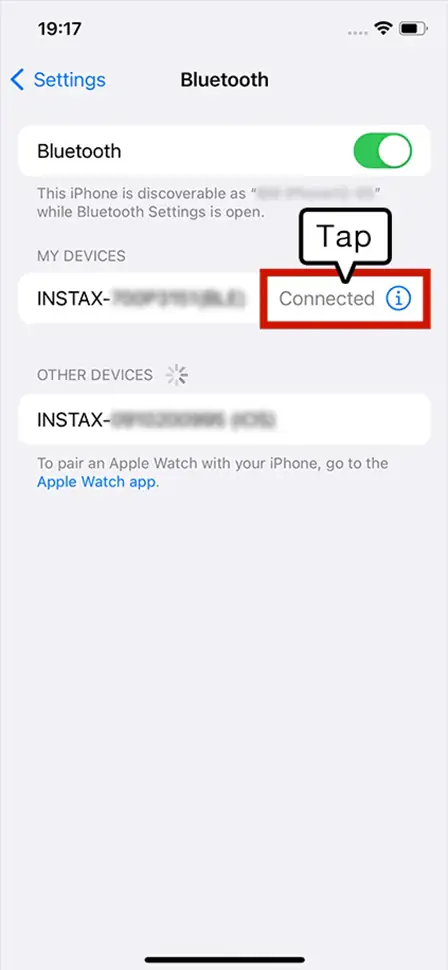
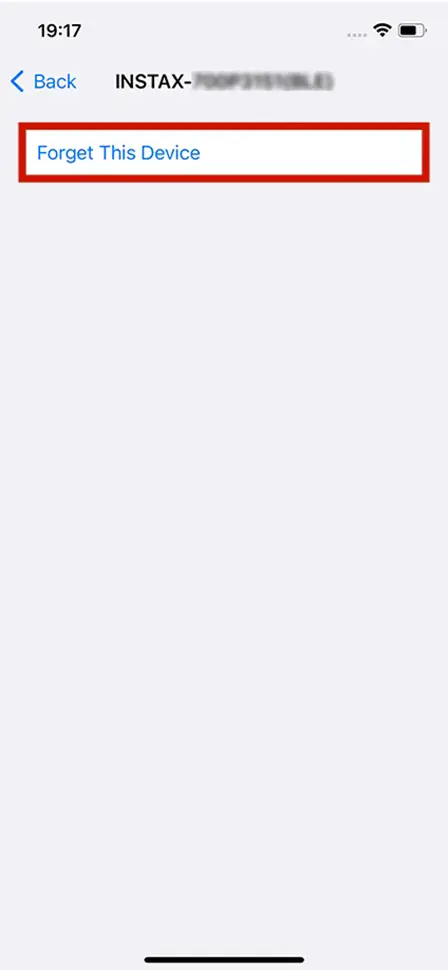
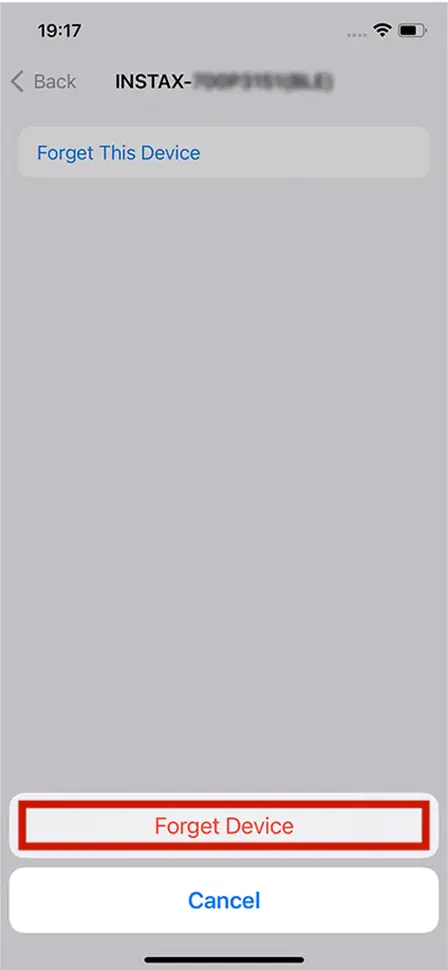
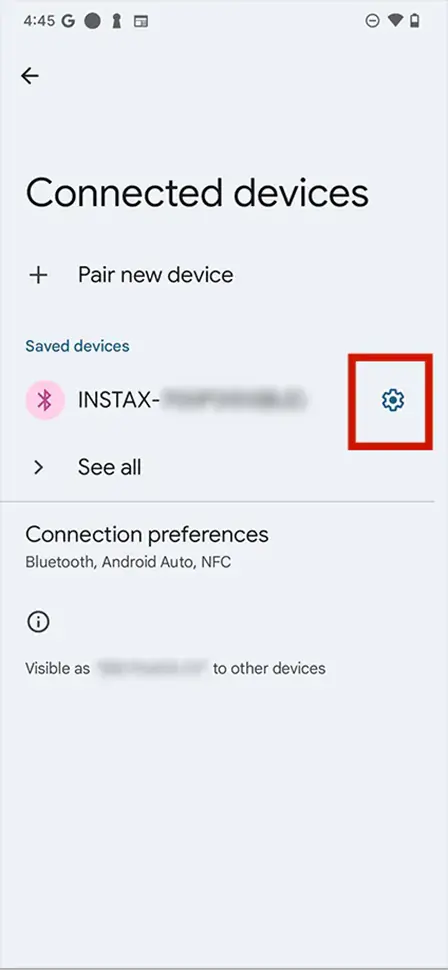
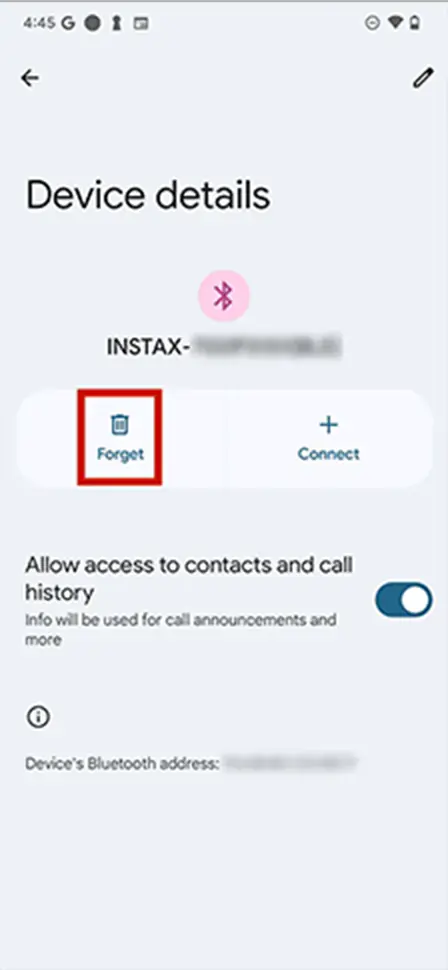
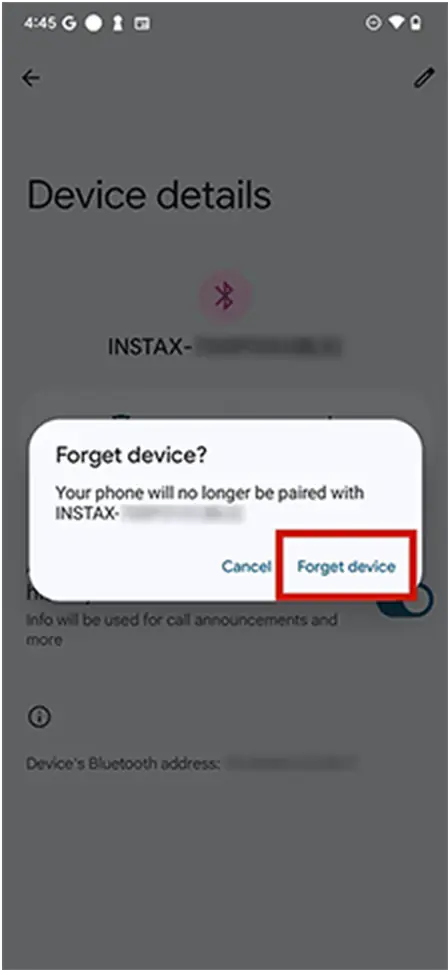
- Restart your smartphone.
- Turn on Bluetooth® through the smartphone’s settings. If Bluetooth® is already turned on, turn it off then on again.
- From the instax Pal 2™ main menu, select [Bluetooth® Settings], then select [Pairing Registration] from the menu.
- Open the instax Pal™ app on your smartphone, then press "No connect" on the app home screen.
- When camera that can be connected is displayed on the app’s Bluetooth® settings screen, press the connect button.
- The app prompts you to connect via Bluetooth®. Make sure the authentication code displayed on the screen matches the code displayed on the instax Pal 2™ screen, then press "Pair".
- Press OK on the instax Pal 2™ screen.The instax Pal 2™ can now be paired with the instax Pal™ app.
Q. I can’t connect my instax Pal 2™ to the instax Pal™ app.
Your smartphone OS will request the following permissions when the instax Pal™ app is opened for the first time after installing or updating the app.
Some or all of the app’s functions may be unavailable if these permissions are not granted. Check your current settings and adjust as required.
- Tap the “Settings” button on the home screen.
- Scroll down to the “instax Pal™” icon and tap on the icon.
- Check that the “Photos”, “Bluetooth®” and “Camera” permissions are set as shown below.
| iOS 17 or later | iOS16 | |
|---|---|---|
| “Photos”
permissions |
Select
“Full Access” |
Select
“All photos” |
| “Bluetooth®”
permissions |
Slide right | Slide right |
| “Camera”
permissions |
Slide right | Slide right |
Tap the “Settings” button on the home screen.
Android 11 or earlier: Tap “Apps & notifications”.
Android 12: Tap “Apps”.
Tap “Display all apps”.
Scroll down and tap the instax Pal™ icon.
Tap “Permissions”.
Check that the “Camera”, “Nearby Devices”, “Location”, “Photos and Videos” and “Files and Media” permissions are set as shown below:
| Android 12 or later | AndroidOS 11 | |
|---|---|---|
| “Camera” permissions | Select “Allow only while using the app” | Select “Allow only while using the app” |
| “Nearby devices” permissions | Select “Allow” | ー |
| “Location” permissions | ー | Select “Allow only while using the app” |
| “Photos and Videos” permission | Select “Always Allow Everything” | ー |
| “Files and Media” permission | ー | Allow “Access to Media Only” |
If the region is set to Mainland China (excluding Hong Kong, Macau and Taiwan) in the app's usage area settings, only an instax Pal 2™ purchased in China can be connected. If the region selected is incorrect, reinstall the instax Pal™ app and select the correct region.
*If you have already installed the app, please make sure you are running version v2.0.0 or later.
Q. How many photos can I take with the instax Pal 2™ camera before connecting to the app?
When not connected to the app, you can take up to 100 photos.
Q. What are the performance specifications of the camera?
See here,
Q. Where can I find out about the latest firmware?
See here,
Q.
How do I update the instax Pal 2™ firmware?
(Update using the instax Pal™ smartphone app)
- Open the instax Pal™ smartphone app.
- Select “SETTINGS” on the app.
- Select “CHECK FOR FIRMWARE UPDATES”.
- Follow the instructions on the screen.
* If you perform a firmware update using the app, any images stored in the device’s internal memory will be deleted during the update. Please transfer them to the app or copy them to an SD card beforehand.
Q.
How do I update the instax Pal 2™ firmware?
(To update by downloading from the web)
- Make sure you have a microSD card ready (sold separately).
- Download the most recent firmware here, then save the “FPUPDATE.DAT” file for the most recent update onto your micro SD card.
- Insert the microSD card into a fully charged camera.
- Select “UPDATE” from the camera’s shooting or playback menu.
- Follow the instructions on the screen.
* If there is image data stored on the internal memory or an SD card, please connect the device to the app and transfer the image data before inserting or swapping the SD card. If you insert the SD card without transferring the data first, you will not be able to transfer the previously captured images to the app.
Q. I want to change the effects available on my camera.
By connecting the instax Pal 2™ camera to the “instax Pal™” smartphone app via Bluetooth®, you can switch between effects to use when taking photos.
- Connect the instax Pal 2™ camera to the “instax Pal™” app via Bluetooth®.
- Tap [Effect] in the upper-right corner of the app’s home screen or the camera connection screen.
- Select your favorite set from the five effect sets displayed, or tap the “+” button next to “Custom,” select up to six effects of your choice, and then tap [Load to Camera].
Q. Can effects be applied after shooting?
Effects can only be applied while taking a photo. They cannot be applied to or changed on still photos or instax Animation™ images after they have been taken.
Q. How many smartphones can be paired with a single camera at the same time?
Only one camera can be paired with one smartphone at any given time.
If you wish to pair with another smartphone you will need to firstly unpair the current smartphone.
To unpair:
Select Bluetooth® settings from the Shooting Menu on your instax Pal 2™ device, then select “DELETE PAIRING REG.” from the menu.
Q. I selected “Do not allow access to location information” on the instax Pal™ app, and now the app won’t start.
Press the reset button located next to the microSD card slot. This will turn off the camera.
When you're ready to use the camera again, turn the power dial to switch the camera from off to on.
Q. I have a new smartphone and would like to transfer my instax Pal™ data.
Data saved to the instax Pal™ app can be backed up on the server.
To back up or restore, your smartphone must be connected to the internet.
The following data can be backed up.
- Still images/instax Animation™ transferred from the instax Pal™
- instax Animation™ created using the instax Pal™ app
- Open the instax Pal™ smartphone app and select “Data backup” from the menu.
- Select “Data backup” on the next screen.
- Once backup is complete a QR code is displayed. Scan the QR code within 48 hours with your new smartphone to recover the data. Tap the icon on the upper right to save the QR code as an image on your smartphone.
- Open the instax Pal™ app on the smartphone and select “Data backup” from the menu.
- Select “Restore data” on the next screen.
- Scan the QR code you created for backup. Can also be read from the camera roll of you device.
- Once restore is complete, check to make sure your backed up still images/instax Animation™ are shown in the gallery of the instax Pal™ app.
Q. Can images/instax Animation™ shot on the instax Pal2™ be transferred to the instax Pal™ app?
Yes, you can transfer photos to the “instax Pal™” app by connecting your smartphone directly to the camera’s USB Type-C port or by connecting wirelessly via Bluetooth®.
<For Direct Connection>- Connect the instax Pal 2™ camera to the “instax Pal™” app via Bluetooth®.
- Connect the instax Pal 2™ to your smartphone directly using the camera’s USB Type-C port.
- “Transfer via USB Type-C” will appear on the “instax Pal™” app screen.
- Tap “OK” on the app screen or turn the lever on the camera counterclockwise to automatically transfer any untransferred still images or instax Animation™ files stored on the camera.
The transferred still images and instax Animation™ files will be saved to the “instax Pal™” app’s home screen.
- Connect the instax Pal 2™ unit to the “instax Pal™” app via Bluetooth®.
- Any untransferred still images or instax Animation™ on the instax Pal 2™ unit will be automatically transferred via Bluetooth®.
The transferred still images and instax Animation™ will be saved to the gallery on the “instax Pal™” app’s home screen.
Q. I want to keep the photos on the instax Pal 2™ even after transferring them.
- Connect the instax Pal 2™ camera to the “instax Pal™” app via Bluetooth®.
- Tap (

- From the settings menu, select [Automatically Delete Data from Camera After Transfer].
- Select [Keep After Transfer] and tap [OK] to change the camera’s settings so that photos remain in the camera (or on the microSD card inserted into the camera) even after they’ve been transferred.
* Photos remaining in the camera after being transferred to the “instax Pal™” app cannot be transferred back to the app.
Q. Can I print still photos taken with the instax Pal 2™ camera or instax Animation™ photos?
Yes, you can print photos using the playback menu on the instax Pal 2™ device itself or via the “instax Pal™” smartphone app. (See here for compatible models.)
<Printing Directly from the Camera>- Turn on your instax™ smartphone printer or hybrid instant camera.
- Press the PLAY button on the instax Pal 2™ device.
- Select the image you want to print and press the Select key.
- When you select [Print] from the menu, the camera and printer will connect via Bluetooth®, and the print preview will be displayed in either mini, SQUARE, or WIDE format, depending on the connected device.
- Select [OK] to print.
- Turn on your instax™ smartphone printer or hybrid instant camera.
- Launch the “instax Pal™” app.
- Select the image you want to print from the gallery on the app’s home screen.
- Tap [Print] at the bottom of the screen, then select the app for your device from the icons displayed for the instax™ smartphone printer or hybrid instant camera app.
- Connect your device to the app via Bluetooth®, then tap the [Print] button to print.
Q. I can't download the instax Animation™ I imported into the app.
Set the “download Settings” in the instax Pal™ app menu to “Allow”.This must be set before printing.
Q. When does the instax Animation™ expire?
The data will expire two years from date printed. After two years, it can no longer be played or downloaded via the server.
Q. I don't know how to attach the angle adjustment accessory.
You can attach it to the long strap included in the package. To attach it, thread the long strap through the hole at the bottom of the angle adjustment accessory.
Please refer to the online manual for details.
Q. What memory cards are compatible with the camera?
The instax Pal 2™ supports microSD/microSDHC/microSDXC cards.
For optimal performance, we recommend using a memory card with a UHS Speed Class of 1 or higher.